
By Zombie Trend AI
How to Make an AI Zombie Trend Video From Two Photos
Make an AI zombie trend video from two photos: upload the survivor and infected character, choose a format, and review your 15-second video before sharing.
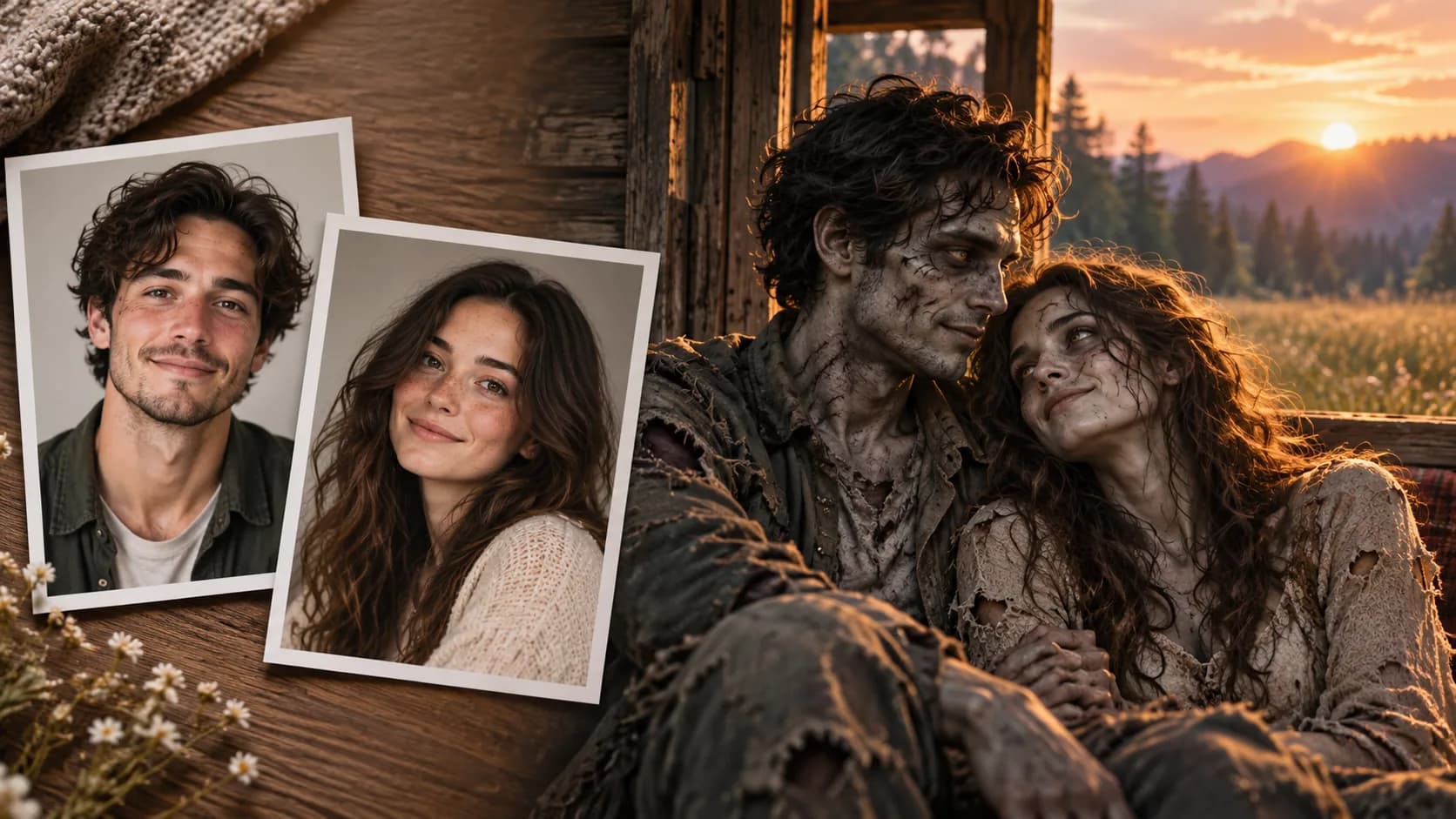
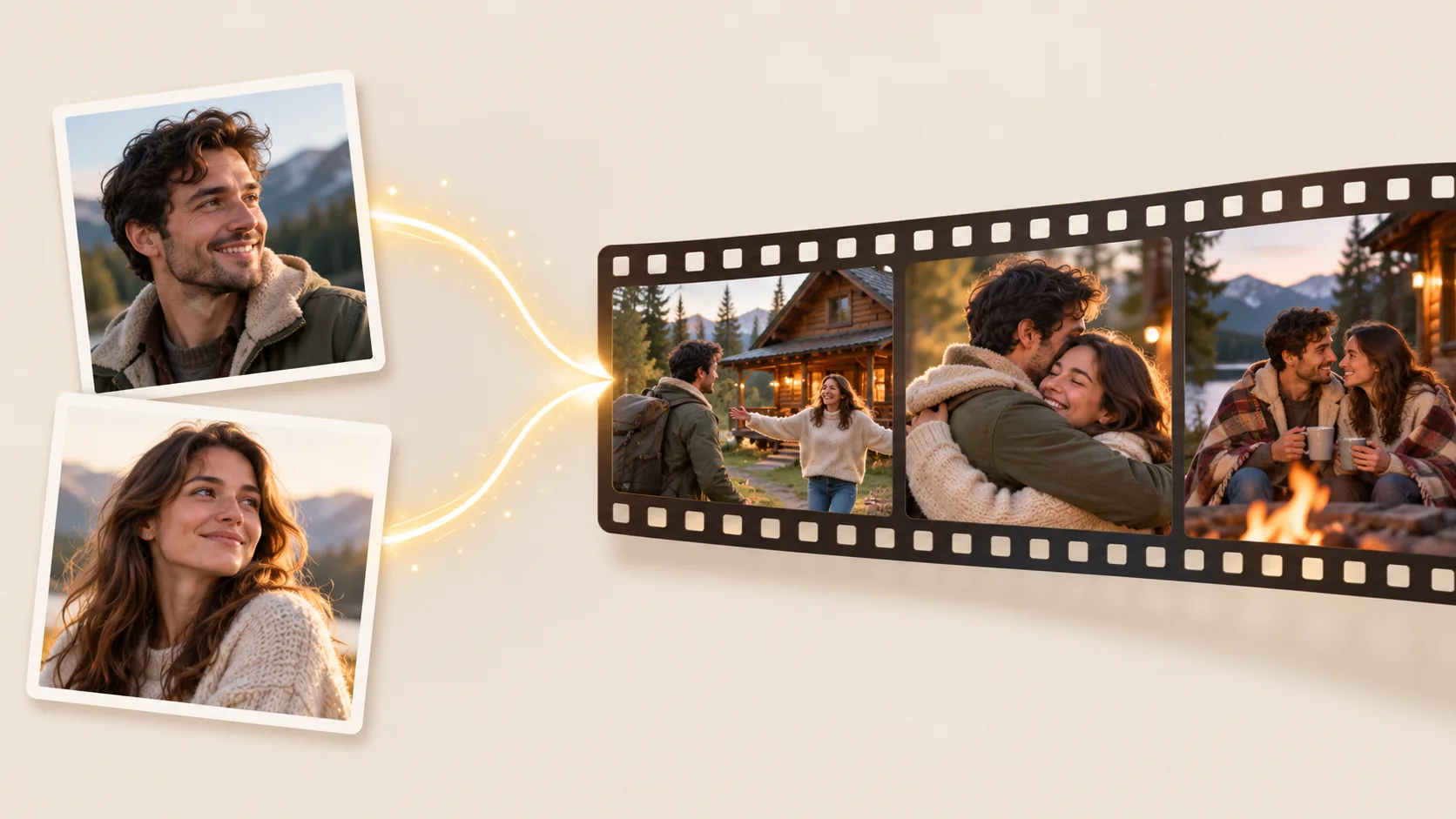
You can make an AI zombie trend video from two ordinary photos without filming a scene or writing a prompt. In Zombie Trend AI, the generator applies a preset 15-second story to the roles in your images. Use the steps below to check the cast, output settings, and credit cost before you submit.
1. Choose who appears
Select People for two consenting adults, or Pet to pair your own photo with a dog or cat. In People mode, photo one is the survivor and photo two is the infected character. In Pet mode, you are the survivor and the pet takes the second role.
Use separate images with one main subject in each. Supported formats are JPG, PNG, and WebP, up to 30 MB per image. Each photo starts uploading as soon as you select it. The AI zombie trend photo checklist explains what makes a useful reference. You do not need to create a zombie edit first; the generator creates the fictional setting and appearance.
2. Upload the images in role order
Check the preview after each upload. If the roles are reversed, replace the images before continuing. Use only photos you own or have permission to use. The service does not accept images of children or public figures.
The two source photos do not need matching backgrounds, outfits, or lighting. Clear faces and ordinary, unfiltered photos give the generation a more useful reference, but they cannot guarantee an exact likeness in every frame.
3. Choose frame shape and resolution
Choose 9:16 portrait when a tall, phone-screen composition fits where you plan to watch or share the clip. Choose 16:9 landscape for a wide video player or desktop viewing. Then select 480p or 720p. Every render is 15 seconds and includes audio.
Standard 480p uses 10 credits; HD 720p uses 20 credits. The studio displays the amount for your selected options before submission. For a more detailed comparison, see AI zombie trend video format and resolution.
4. Submit and follow the render
Sign in, confirm the displayed credit cost, and submit the video request. Processing time varies, and the task status appears in your workspace. Buying credits by itself does not start a render; you must submit a video request from the studio.
5. Watch the whole video before sharing
Play the completed MP4 with sound. Check that the intended people or pet appear in the right roles, that the central action reads clearly, and that the scene transition and audio work for you. Generated movement and identity details can vary from one result to another. The story order is preset, so the studio does not provide a prompt editor or frame-by-frame repair controls.
If the result is not usable, try a new generation with clearer source photos. A failed task is refunded automatically; a completed render is a new result, not an editable timeline. Get permission from everyone depicted, disclose that the video is AI-generated when you share it, and follow the rules of the platform where you post.
Photo and privacy reminder
Uploaded photos are sent to the generation provider through the service's current image-processing flow. Exact object URLs can be accessed by someone who obtains them while the file is available. Source photos are normally deleted after generation, while completed videos do not currently expire automatically. Review the Privacy Policy and avoid uploading sensitive images.
Ready to start? Open the AI zombie video studio to preview the example and check your settings.