
A 15-second AI film from two photos
AI Zombie Trend Video Maker
Build a short scene from two photos. Choose People or Pet mode, assign the two roles, then select 480p or 720p and portrait or landscape. The storyboard and credit cost are clear before you render; every finished video includes audio.
- Two photo roles
- 15-second MP4 with audio
- Portrait 9:16 or landscape 16:9
- People or pet mode
One turns. One can’t shoot.
16:9Sample made with this generator · Couple · 16:9. Both people are AI characters.
The cabin. The gun. The wheat field.
15 seconds, with sound. The shot list is built in. All it needs is your two photos.
Your videos
Sign in to create and keep your videos.
How it works
From two photos to an MP4 in three choices
This studio uses a fixed storyboard. Select the cast and output options, then check the credit cost before you submit.

 2
2Step 1
Select the cast
Upload two separate photos in People mode, or your photo and a pet photo in Pet mode. Use permitted images in JPG, PNG, or WebP, up to 30 MB each. Each photo starts uploading when you select it.
Standard · 480p
10 credits
HD · 720p
9:16
Like the trend
16:9
Full screen
Step 2
Choose resolution and frame
Pick Standard 480p or HD 720p and portrait 9:16 or landscape 16:9. The studio displays the credit amount for that combination before you start.
 MP4
MP4Step 3
Review your video
The 15-second render appears in your workspace when processing finishes. Watch the video and audio, then download the MP4 if it is ready to share. Processing time can vary.
Preset storyboard
A 15-second video, scene by scene
The current generator follows this sequence rather than an editable prompt or timeline. Review the sample to see the treatment before using credits.
0–4 s
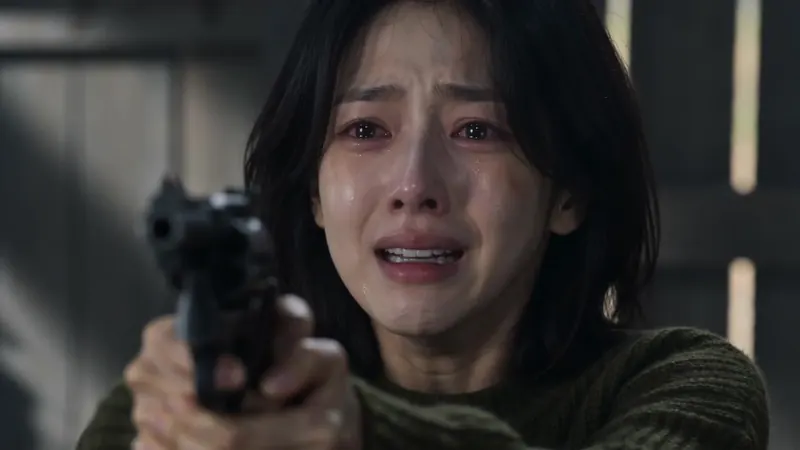
The encounter
The opening establishes the survivor and the approaching infected character in the cabin.
4–6 s
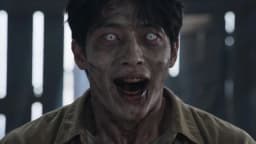
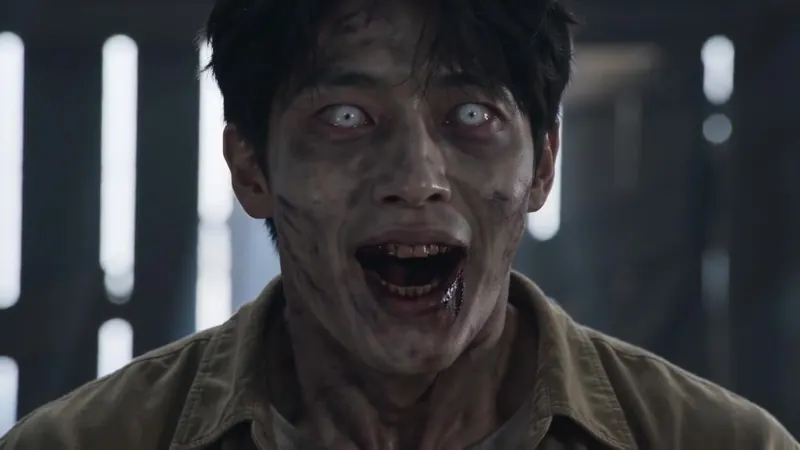
The reveal
A brief close-up makes the character's transformation visible.
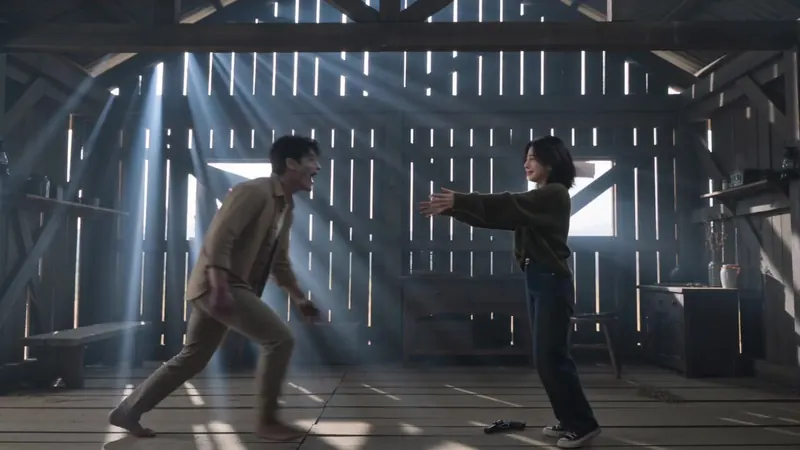
6–10 s
The choice
The survivor lowers the weapon; the movement shifts from conflict toward recognition.
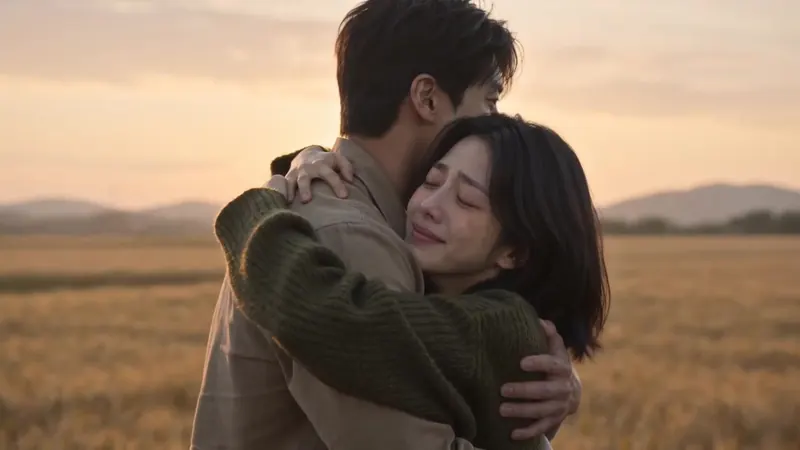
10–15 s
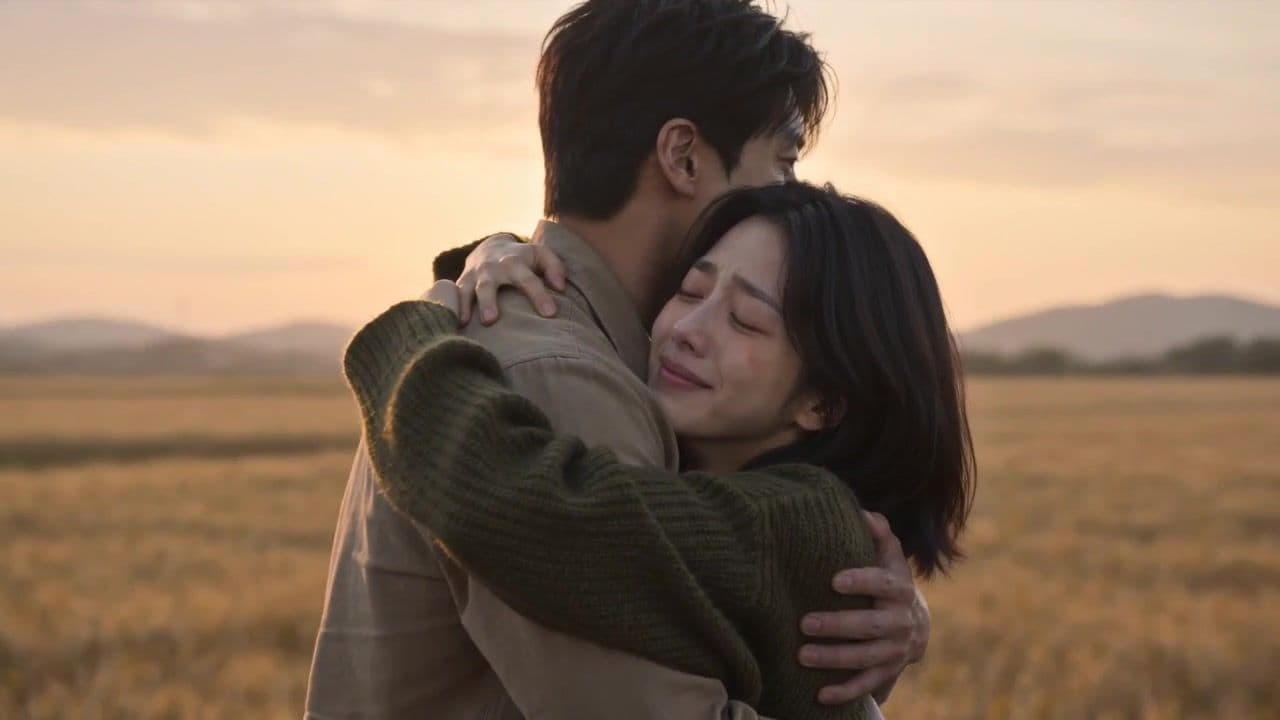
The change in scene
A match cut carries the movement into a calm outdoor memory, where the characters embrace.
Examples
Sample renders from the studio
Watch the video and audio to understand the preset. Examples use AI-generated characters; your result can vary.
About the format
What is an AI zombie video?
AI zombie trend and zombie hug trend are names people use for short, AI-made scenes that place familiar subjects in a fictional outbreak story. The format moves from tension toward reunion; the subjects and setting are generated, not documentary footage.
Zombie Trend AI makes a preset 15-second version from two reference images. In People mode, one image is assigned to the survivor and the other to the infected character; Pet mode uses a dog or cat as the second subject. The order of scenes is fixed, while you choose resolution and frame shape.
Before rendering, compare the sample with your intended use, confirm the images are allowed, and check the displayed credit cost. The generator does not expose a prompt editor or shot-by-shot controls.
Why Zombie Trend AI
A focused workflow with the choices shown up front
The studio is built around one short-video format, with cast mode, output settings, and credit cost visible before a render starts.
Pricing
Know the render cost before you start
Buy credits once and use them for video renders. Standard 480p uses 10 credits; HD 720p uses 20. Credit packs do not renew as a subscription, and the studio shows the cost for your selected option.
Standard 480p · 10 credits · HD 720p · 20 credits · every video is 15 seconds with sound
Secure one-time checkout via Stripe
FAQ
AI Zombie Video Questions
Details about the preset, photo requirements, output, and account workflow.
Start with the inputs
Choose two photos and review the settings
Select a cast mode, choose resolution and frame shape, then check the credit cost before submitting your 15-second video.
Open the video studio